
Resumen ejecutivo: Un programa de utilidad es software de sistema especializado diseñado para analizar, configurar, optimizar o mantener un ordenador, en lugar de ayudarte a producir trabajo directamente. Windows Defender, integrado en todas las versiones de Windows, vigila el malware en segundo plano. 7-Zip, una descarga gratuita de terceros, comprime y extrae archivos bajo demanda.
- Windows Defender: integrado, se ejecuta continuamente para detectar amenazas
- 7-Zip: de terceros, se ejecuta cuando necesitas comprimir o descomprimir archivos
Conclusiones Clave
Un programa de utilidad es software de sistema que mantiene, configura u optimiza un ordenador, y elegir la combinación adecuada de herramientas integradas y de terceros depende de ajustar las necesidades reales a los riesgos reales.
| Punto | Detalles |
|---|---|
| Definición básica | Un programa de utilidad analiza, configura o mantiene un ordenador en lugar de producir contenido para el usuario directamente. |
| Primero lo integrado | Comienza con las herramientas proporcionadas por el sistema operativo, como Windows Defender, antes de añadir software de terceros. |
| Ajusta la herramienta a la tarea | Usa la taxonomía (antivirus, copia de seguridad, compresión, recuperación) para elegir la categoría adecuada a tu problema. |
| Verifica antes de instalar | Comprueba la reputación del proveedor, los permisos requeridos y el historial de actualizaciones antes de ejecutar cualquier nueva utilidad. |
| Haz una copia de seguridad primero | Crea un punto de restauración o copia de seguridad antes de ejecutar herramientas de disco, partición o registro. |
Para las organizaciones que formalizan estos hábitos en un programa de seguridad, una evaluación gratuita de preparación para ISO 27001 de Ismscalculator muestra cómo las prácticas básicas de mantenimiento, como la aplicación de parches y la disciplina en las copias de seguridad, se corresponden con los requisitos de cumplimiento más amplios en menos de dos minutos.
Tabla de Contenidos
- ¿Qué Es un Programa de Utilidad y en Qué Se Diferencia de Otro Software?
- ¿Cuáles Son los Principales Tipos de Programas de Utilidad?
- ¿Qué Tareas Realizan Realmente los Programas de Utilidad?
- ¿Cuáles Son Algunos Ejemplos Reales de Programas de Utilidad?
- ¿Debes Confiar en las Utilidades Integradas o Añadir Herramientas de Terceros?
- ¿Cómo Elegir un Programa de Utilidad de Forma Segura?
- ¿Qué Riesgos Conllevan los Programas de Utilidad y Cómo Evitarlos?
- Preguntas Frecuentes
- Fuentes
¿Qué Es un Programa de Utilidad y en Qué Se Diferencia de Otro Software?
Un programa de utilidad no es el sistema operativo, ni tampoco la aplicación que abres para escribir un correo electrónico o editar una foto. Ocupa un rol de soporte, gestionando la infraestructura del ordenador, el hardware, el software de sistema y las aplicaciones para que todo lo demás funcione sin problemas. Piensa en el sistema operativo como los cimientos y el cableado del edificio, en el software de aplicación como el mobiliario que realmente usas, y en el software de utilidad como el equipo de mantenimiento que mantiene las tuberías despejadas y las cerraduras en funcionamiento.
- Software de sistema (Windows, macOS, Linux): ejecuta la máquina en sí y gestiona el hardware directamente.
- Software de utilidad (antivirus, limpiadores de disco): mantiene, supervisa u optimiza dicho sistema en segundo plano o bajo demanda.
- Software de aplicación (Word, Photoshop, Chrome): te permite producir o consumir contenido directamente.
La diferencia práctica se aprecia en los permisos y el comportamiento. Muchas utilidades necesitan acceso de administrador o root porque tocan archivos del sistema o configuraciones de hardware, algo que un procesador de textos nunca necesita. Algunas se ejecutan constantemente en segundo plano (escáneres antivirus); otras solo se activan cuando las abres (compresores de archivos).
¿Cuáles Son los Principales Tipos de Programas de Utilidad?
El software de utilidad se divide en unas pocas categorías reconocibles, y la mayoría caben en una lista corta que cubre casi todos los casos de uso que encontrarás:
- Antivirus/antimalware — analiza y elimina código malicioso; normalmente se ejecuta de forma continua.
- Copia de seguridad y recuperación — copia archivos o unidades completas para poder restaurarlos tras una pérdida; a menudo programado para ejecutarse automáticamente.
- Limpiadores de disco — elimina archivos temporales y despeja el desorden para liberar almacenamiento.
- Desfragmentadores — reorganiza los datos fragmentados en los discos duros tradicionales para un acceso más rápido.
- Herramientas de compresión de archivos — reduce los archivos a formatos de archivo comprimido para almacenamiento o transferencia.
- Gestores de archivos — permite navegar, mover, renombrar y organizar archivos visualmente.
- Herramientas de disco y partición — crea, redimensiona o formatea particiones de unidades.
- Software de cifrado — protege los datos con una contraseña o clave para que solo los usuarios autorizados puedan leerlos.
- Optimizadores del sistema/limpiadores de registro — reduce los programas de inicio y elimina entradas residuales del registro.
- Monitores del sistema — rastrea el uso de CPU, memoria y disco en tiempo real.
- Herramientas de recuperación — recupera archivos eliminados o dañados cuando algo va mal.
Las versiones básicas de varios de estos, especialmente las herramientas de disco y la protección contra malware, ya vienen incluidas en los sistemas operativos modernos, mientras que otros (limpiadores de registro, cifrado avanzado) suelen ser complementos de terceros.
¿Qué Tareas Realizan Realmente los Programas de Utilidad?
Cada tipo de utilidad se corresponde con una tarea específica. Así es como la taxonomía se traduce en tareas cotidianas:
- Analizar el estado del sistema → los monitores del sistema rastrean la carga de CPU, memoria y disco.
- Liberar espacio en disco → los limpiadores de disco eliminan archivos temporales y caché.
- Cifrar datos → las herramientas de cifrado bloquean archivos sensibles o unidades completas.
- Comprimir archivos → las herramientas de archivado reducen archivos para almacenamiento o correo electrónico.
- Hacer copias de seguridad y restaurar → el software de copia de seguridad copia datos según un calendario.
- Analizar y eliminar malware → las herramientas antivirus detectan y ponen en cuarentena las amenazas.
- Supervisar el uso de recursos → los monitores del sistema identifican aplicaciones que consumen demasiada memoria.
- Reparar sistemas de archivos → las utilidades de disco corrigen tablas de archivos dañadas.
- Recuperar archivos eliminados → las herramientas de recuperación analizan las unidades en busca de datos recuperables.
Obsérvese la diferencia en cómo se ejecutan. Los escáneres en tiempo real trabajan continuamente en segundo plano, mientras que las herramientas de compresión y recuperación solo se activan cuando se lo indicas.
¿Cuáles Son Algunos Ejemplos Reales de Programas de Utilidad?
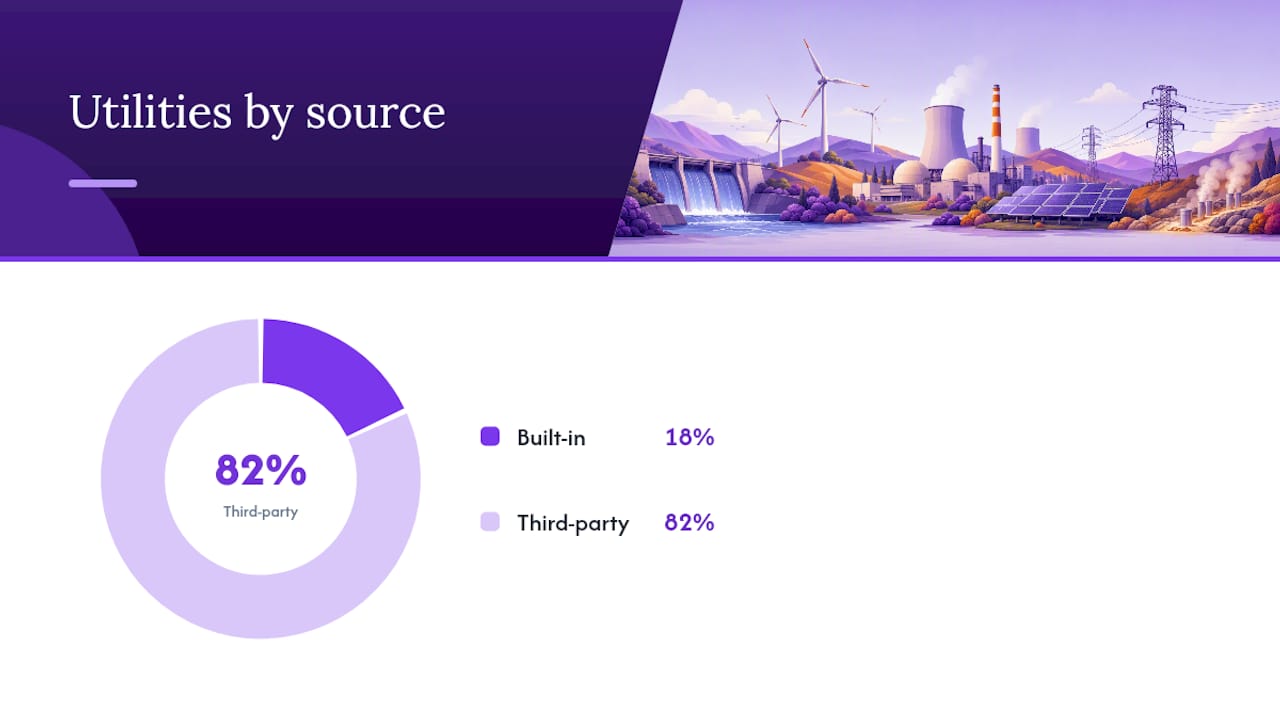
Los nombres ayudan más que las categorías cuando intentas hacerte una idea de lo que realmente hacen estas herramientas. Aquí tienes diez que reconocerás, divididos según cómo se obtienen.
Utilidades integradas (no requieren descarga):
- Windows Defender — analiza el malware de forma continua; ya está activo en cualquier máquina con Windows.
- Optimizador de unidades de Microsoft — desfragmenta y optimiza los discos duros según un calendario.
Utilidades de terceros (se descargan por separado):
- CCleaner — elimina archivos basura y caché del navegador para liberar espacio.
- 7-Zip — comprime y extrae archivos comprimidos, gratuito y de código abierto.
- WinRAR — crea y abre archivos RAR y ZIP, popular para transferencias de archivos grandes.
- WinZip — una de las herramientas de compresión ZIP originales, todavía ampliamente utilizada para archivar.
- Norton Antivirus — ofrece protección de pago contra malware con actualizaciones continuas.
- Avast — ofrece análisis antivirus gratuito con actualizaciones de pago opcionales.
- Recuva — recupera archivos eliminados accidentalmente de discos duros y tarjetas de memoria.
- VeraCrypt — cifra unidades completas o crea contenedores de archivos cifrados.
- Macrium Reflect — clona unidades y crea copias de seguridad de imágenes de disco completas.
Las herramientas integradas vienen preinstaladas y presentan un riesgo mínimo, ya que están verificadas por el proveedor del sistema operativo. Las herramientas de terceros añaden funcionalidades, pero merecen una verificación rápida de su reputación antes de instalar nada.
¿Debes Confiar en las Utilidades Integradas o Añadir Herramientas de Terceros?
Las utilidades integradas ganan en seguridad. Están prevalidadas, están estrechamente integradas con el sistema operativo y rara vez entran en conflicto con nada más en tu sistema. La contrapartida es la profundidad de funciones. Windows Defender cubre bien la protección básica contra malware, pero no clonará una imagen completa del disco como lo hace Macrium Reflect.
- Ventajas de las integradas: seguras por defecto, sin problemas de compatibilidad, actualizadas mediante los parches normales del sistema operativo.
- Inconvenientes de las integradas: funcionalidades limitadas, menor personalización.
- Ventajas de las de terceros: mayor funcionalidad, más control, a menudo mejores interfaces.
- Inconvenientes de las de terceros: fiabilidad variable, posibilidad de conflictos, otro flujo de actualizaciones a gestionar.
Un enfoque razonable: empieza con lo que está integrado y añade una herramienta de terceros solo cuando encuentres una carencia real, como la necesidad de imágenes completas de disco o gestión avanzada de dispositivos empresariales, que la opción integrada no cubre. Antes de instalar cualquier cosa, comprueba con qué frecuencia el proveedor publica actualizaciones. Una utilidad que no ha recibido parches en dos años es un riesgo, independientemente de lo buenas que fueran sus valoraciones en su momento.
¿Cómo Elegir un Programa de Utilidad de Forma Segura?
- Verifica la compatibilidad con tu versión exacta del sistema operativo antes de descargar nada.
- Comprueba qué permisos solicita. Un compresor de archivos que pide derechos de administrador sobre todo el sistema es una señal de alarma.
- Confirma la reputación del proveedor mediante valoraciones y el tiempo que lleva la empresa publicando actualizaciones.
- Revisa la política de actualizaciones y soporte. El software abandonado es un riesgo de seguridad latente.
- Haz una copia de seguridad de tu sistema o establece un punto de restauración antes de instalar cualquier cosa que afecte a los discos o al registro.
- Descarga únicamente desde el sitio oficial del proveedor o un repositorio de confianza, y verifica los instaladores firmados cuando estén disponibles.
- Prueba primero en un entorno de bajo riesgo si la herramienta realiza operaciones destructivas como particionado o limpieza masiva.
Si una alternativa integrada ya cubre tu necesidad, ese suele ser el punto de partida más seguro antes de añadir otro programa a gestionar.
Breve Apunte sobre el Origen de los Programas de Utilidad
Las utilidades se remontan a los inicios de la informática, cuando los operadores necesitaban herramientas sencillas para copiar datos entre dispositivos de almacenamiento, probar la memoria y gestionar trabajos por lotes en máquinas del tamaño de una habitación. Esa necesidad nunca desapareció, simplemente se volvió más pequeña y más amigable. Hoy en día, IEEE POSIX (1003.1) estandariza un conjunto básico de utilidades para los sistemas derivados de UNIX, razón por la que comandos como cp, grep y tar se comportan de la misma manera tanto en Linux, como en macOS o en una variante BSD.
¿Qué Riesgos Conllevan los Programas de Utilidad y Cómo Evitarlos?
Las utilidades tocan partes profundas de tu sistema, que es exactamente por qué son un disfraz favorito del malware. Una aplicación falsa de «limpieza» es uno de los métodos de distribución de troyanos más habituales, precisamente porque la gente confía en esa categoría.
- Riesgos: utilidades falsas troyanizadas, instaladores que solicitan permisos excesivos, pérdida de datos por herramientas de limpieza agresivas, inestabilidad por utilidades de disco mal programadas.
- Buenas prácticas: descarga solo desde fuentes de confianza, mantén todas las utilidades actualizadas, limita la frecuencia con la que ejecutas herramientas con acceso de administrador o root, haz copias de seguridad antes de cualquier operación arriesgada y da preferencia a los instaladores firmados por el proveedor.
Consejo profesional: Antes de ejecutar un nuevo limpiador de disco, herramienta de particionado o limpiador de registro por primera vez, pruébalo en una máquina auxiliar o en un snapshot de máquina virtual en lugar de en tu equipo de uso diario. Si algo falla, probar primero en un entorno que no sea de producción significa que no pierdes nada más que tiempo.
Tratar las Utilidades como Mantenimiento, No como una Solución Milagrosa
Las utilidades mantienen un sistema en buen estado de la misma manera que el mantenimiento regular mantiene un coche en marcha. No sustituyen a los fundamentos: hacer copias de seguridad de tus datos, aplicar las actualizaciones del sistema operativo y configurar las cuentas de forma segura. Usa un buen conjunto de utilidades junto a esos hábitos, no en su lugar, y la mayoría de los riesgos mencionados en la sección anterior simplemente nunca llegarán a producirse.
Preguntas Frecuentes
¿Cuál es la definición más sencilla de un programa de utilidad? Un programa de utilidad es software diseñado para analizar, configurar, optimizar o mantener un sistema informático, en lugar de ayudarte a crear documentos, navegar por la web o editar contenido multimedia como hace el software de aplicación.
¿Se considera el antivirus un programa de utilidad? Sí. Las herramientas antivirus entran de lleno en la categoría de utilidades porque supervisan, analizan y protegen el sistema en lugar de producir contenido para el usuario.
¿Cuál es la diferencia entre un programa de utilidad y el software de sistema? El software de sistema (el propio sistema operativo) ejecuta el ordenador directamente. Un programa de utilidad es una herramienta especializada que da soporte, mantiene u optimiza dicho sistema, a menudo construida sobre él o incluida junto a él.
¿Necesito programas de utilidad de terceros, o son suficientes los integrados? Las utilidades integradas cubren de forma segura la mayoría de las necesidades cotidianas. Añade una herramienta de terceros solo cuando encuentres una carencia específica, como la creación de imágenes completas de disco o el cifrado avanzado, que la opción integrada no resuelve.
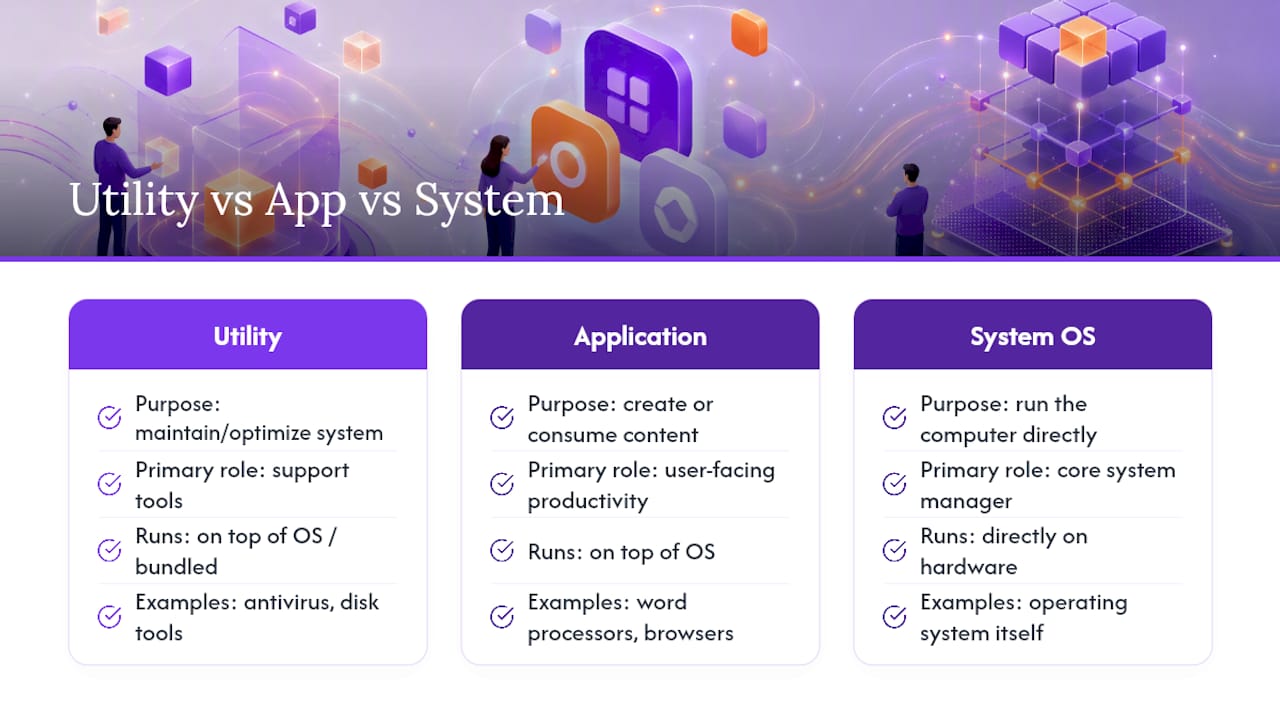
¿Son los programas de utilidad lo mismo que las aplicaciones? No. Las aplicaciones como los procesadores de textos o los navegadores existen para que crees o consumas contenido directamente. Los programas de utilidad existen para mantener el sistema subyacente en buen funcionamiento, trabajando habitualmente en segundo plano o bajo demanda, en lugar de ser tu espacio de trabajo principal.
Fuentes
- What is a Utility?
- Utility software - Wikipedia
- Utility programs | IEEE Technology Navigator
- Utility Software - GeeksforGeeks
- POSIX / Single UNIX Specification index (mirror)
Recomendado
- Qué Significa Disponibilidad: Definiciones, Métricas y Buenas Prácticas | ISMS Calculator
- Cómo Comparar los Costes de Cumplimiento: Guía Práctica 2026 | ISMS Calculator
- Ejemplo de Informe de Auditoría Interna: Plantillas Listas para Usar | ISMS Calculator
- Definición del Alcance de un Proyecto de Cumplimiento: Guía 2026 | ISMS Calculator